
Welcome to PCL's Learning 2.0 program & blog.
Learning 2.0 is online learning program that encourages staff to learn more about emerging technologies on the web that are changing the way people, society and libraries access information and communicate with each other.
Over the course of the next few weeks, this website will highlight “20 Things” and discovery exercises to help staff become familiar with blogging, RSS news feeds, tagging, wikis, podcasting, and video and image hosting sites.
So fasten your seat belts, grab your mouse and get ready for a discovery adventure… and remember, it's OK to play in the library and have fun!
Among libraries, lifelong learning is one of those core values we shelve our books by. So it makes sense that before we embark on this new online learning and discovery journey that we should take a few minutes to review a few habits that can assist in creating lifelong learners.
These habits, which we’ve called the Seven and 1/2 Habits of Highly Successful Lifelong Learners, will provide you with a refresher on what it means to be a lifelong learner.
Discovery Exercise:
1. Make sure you have headphones or speakers attached to your computer.
2. Open up the Seven and 1/2 Habits of Highly Successful Lifelong Learners online tutorial and view the online tutorial.
3. As you watch and listen, write down which habit among the 7 & 1/2 that is easiest for you and which is hardest. You will use your personal blog (which you will set up next) to post your thoughts about lifelong learning.
Have fun! If you haven't jumped on board yet, it's never too late to become a lifelong learner.
Friday, June 6, 2008


20 Learning 2.0 Things*
Listed below are 20 Things (or small exercises) that you can do on the web to explore and expand your knowledge of the Internet and Web 2.0. (Note: Details about each task will be activated every week with posts related to each item)
Week 1: Introduction & Blogging
Read this blog & find out about the program.
1. Set up your own blog & add your first post. Register your blog by e-mail and begin your Learning 2.0 journey.
Week 2: Photos & Images
2. Explore Flickr and learn about this popular image hosting site.
3. Have some Flickr fun and discover some Flickr mashups & 3rd party sites.
4. Create a blog post about anything technology related that interests you this week.
Week 3: RSS & Newsreaders
5. Learn about RSS feeds and setup your own Bloglines newsreader account.
6. Locate a few useful library related blogs and/or news feeds.
Week 4: Play Week
7. Play around with an online image generator.
8. Take a look at LibraryThing and catalog some of your favorite books.
9. Roll your own search tool with Rollyo.
Week 5: Tagging, Folksonomies & Technorati
10. Learn about tagging and discover Del.icio.us (a social bookmaking site)
11. Explore Technorati and learn how tags work with blog posts.
12. Read a few perspectives on Web 2.0, Library 2.0 and the future of libraries and blog your thoughts.
Week 6: Wikis
13. Learn about wikis and discover some innovative ways that libraries are using them.
14. Add an entry to the WFUPCL Sand Box wiki.
Week 7: Online Applications & Tools
15. Take a look at some online productivity (word processing, spreadsheet) tools.
16. Explore any site from the Web 2.0 awards list, play with it and write a blog post about your findings.
Week 8: Podcasts, Video & Downloadable audio
17. Discover YouTube and a few sites that allow users to upload and share videos.
18. Discover some useful search tools for locating podcasts.
19. Take a look at the titles available on NetLibrary and learn how to download audiobooks.
20. Summarize your thoughts about this program on your blog.
Week 1: Introduction & Blogging
Read this blog & find out about the program.
1. Set up your own blog & add your first post. Register your blog by e-mail and begin your Learning 2.0 journey.
Week 2: Photos & Images
2. Explore Flickr and learn about this popular image hosting site.
3. Have some Flickr fun and discover some Flickr mashups & 3rd party sites.
4. Create a blog post about anything technology related that interests you this week.
Week 3: RSS & Newsreaders
5. Learn about RSS feeds and setup your own Bloglines newsreader account.
6. Locate a few useful library related blogs and/or news feeds.
Week 4: Play Week
7. Play around with an online image generator.
8. Take a look at LibraryThing and catalog some of your favorite books.
9. Roll your own search tool with Rollyo.
Week 5: Tagging, Folksonomies & Technorati
10. Learn about tagging and discover Del.icio.us (a social bookmaking site)
11. Explore Technorati and learn how tags work with blog posts.
12. Read a few perspectives on Web 2.0, Library 2.0 and the future of libraries and blog your thoughts.
Week 6: Wikis
13. Learn about wikis and discover some innovative ways that libraries are using them.
14. Add an entry to the WFUPCL Sand Box wiki.
Week 7: Online Applications & Tools
15. Take a look at some online productivity (word processing, spreadsheet) tools.
16. Explore any site from the Web 2.0 awards list, play with it and write a blog post about your findings.
Week 8: Podcasts, Video & Downloadable audio
17. Discover YouTube and a few sites that allow users to upload and share videos.
18. Discover some useful search tools for locating podcasts.
19. Take a look at the titles available on NetLibrary and learn how to download audiobooks.
20. Summarize your thoughts about this program on your blog.
Thursday, June 5, 2008
#20 Is this really the end? Or just the beginning ...

Wow! Congratulations!! You’ve reached the 20th thing. Be sure to give yourself a pat on the back for completing the program.
For your last and final exercise for this program please reflect on your learning journey and post a few thoughts. Here are some questions to prompt you if you're drawing a blank ...
· What were your favorite discoveries or exercises on this learning journey?
· How has this program assisted or affected your lifelong learning goals?
· Were there any take-aways or unexpected outcomes from this program that surprised you?
· What could we do differently to improve upon this program’s format or concept?
#19 Audiobooks
It’s time to take a look around NetLibrary and downloadable eAudiobooks.
Downloadable eAudiobooks is a service provided by Recorded Books which is available through the undergraduate library’s subscription to NetLibrary.
To establish a NetLibrary account, you must first create your account through the ZSR website.
Discovery Resources:
For this discovery exercise, you merely need to familiarize yourself a bit with the structure of NetLibrary's Downloadable eAudiobooks site and get an idea of the types of titles you can find here. Take a look around and locate a few titles of interest.
Discovery Exercise:
1. Establish a Netlibrary account for yourself by accessing Netlibrary through the ZSR site.
2. Once you have an account created, you can access NetLibrary directly at http://netlibrary.com/
3. Click on the eAudiobooks link and explore some of the 1300 + titles.
4. Create a blog post about your findings. Did you locate a title that you might want to try out and download?
OPTIONAL: Try downloading a title from the NetLibrary. You don’t have to have a portable player to listen to audio books, you can also listen to it from a computer.
Downloadable eAudiobooks is a service provided by Recorded Books which is available through the undergraduate library’s subscription to NetLibrary.
To establish a NetLibrary account, you must first create your account through the ZSR website.
Discovery Resources:
For this discovery exercise, you merely need to familiarize yourself a bit with the structure of NetLibrary's Downloadable eAudiobooks site and get an idea of the types of titles you can find here. Take a look around and locate a few titles of interest.
Discovery Exercise:
1. Establish a Netlibrary account for yourself by accessing Netlibrary through the ZSR site.
2. Once you have an account created, you can access NetLibrary directly at http://netlibrary.com/
3. Click on the eAudiobooks link and explore some of the 1300 + titles.
4. Create a blog post about your findings. Did you locate a title that you might want to try out and download?
OPTIONAL: Try downloading a title from the NetLibrary. You don’t have to have a portable player to listen to audio books, you can also listen to it from a computer.
#18 Podcasts, Smodcasts!
Listen to this podcast [2:17]-->powered by ODEO
The word podcast is used to refer to a non-musical audio or video broadcast that is distributed over the Internet. What differentiates a podcast from regular streaming audio or video is that the delivery method for podcasts is often done automatically through RSS.
In 2005, "podcast" was named the "word of the year" by New Oxford American Dictionary and with the growth of podcasting over the last 24 months, it's easy to see why.
Podcasts take many forms, from short 1-10 minutes commentaries (like the ones used in this Learning 2.0 program) to much longer in person interviews or panel group discussions. There’s a podcast out there for just about every interest area and the best part about this technology is that you don’t have to have an iPod or a MP3 player to access them. Since podcasts use the MP3 file format, a popular compressed format for audio files, you really just need a PC (or portal device) with headphones or a speaker.
iTunes, the free downloadable application created by Apple is the directory finding service most associated with podcasts, but if you don’t have iTunes installed there are still plenty of options.
For this discovery exercise participants are asked to take a look at some popular podcast directory tools. Do some exploring on your own and locate a podcast that is of interest to you. Once found, you can easily pull the RSS feed into your Bloglines account as well, so that when new casts become available you’ll be automatically notified of their existence.
Discovery Resources:
To find out more about podcasts start with Yahoo: What is a podcast? tutorial.
There are many, many podcast directories and finding tools out there. Here are just three of the more popular ones that, unlike iTunes, don't require a software download:
· Podcast.com
· Podcastalley.com
· Yahoo Podcasts
What? You want to learn how to be a podcaster too? (Optional Resources for those who want to learn how to create podcasts)
· Odeo’s Studio – online recording studio.
· Beginner's guide to Podcasts & Creating Podcasts
· How to podcast tutorial
Discovery Exercise:
1. Take a look at one or two of the podcast directories listed and see if you can find a podcast that interests you. See if you can find some interesting library related podcasts here like book review podcasts or library news.
2. Add the RSS feed for a podcast to your Bloglines account
3. Create a blog post about your discovery process. Did you find anything useful here?
#17 You too can YouTube
Listen to this podcast [1:58]-->powered by ODEO
Within the past year online video hosting sites have exploded allowing users to easily to upload and share videos on the web. Among all the web 2.0 players in this area, YouTube is currently top dog allowing users not only to upload their own video content easily, but also embed clips into their own sites easily.
Do some searching around YouTube yourself and see what the site has to offer. You'll find everything from 1970s TV commercials to library dominos. Here’s a video (created by PLCMC’s Web Services) that shows off ImaginOn’s Express Check.Of course, like any free site you’ll also find a lot stuff not worth watching too. But that doesn’t mean you shouldn’t explore and see for yourself what the site has too offer. :)
Discovery Exercise:
1. Explore YouTube & find a video worth adding as an entry in your blog.
2. Create a blog post about your experience. What did you like or dislike about the site and why did you choose the video that you did? Can you see any features or components of the site that might be interesting if they were applied to library websites?
OPTIONAL: Try placing the video inside your blog using the copy and paste code for the for "Embeddable Player.” Note: you'll need to use Blogger's Edit HTML tab when pasting this code.
Other popular video hosting sites:
· Yahoo Videos
· Google videos
NOTE: Videos, like music downloads, are bandwidth hogs. It is recommended that you complete this exercise during light internet usage times.
Within the past year online video hosting sites have exploded allowing users to easily to upload and share videos on the web. Among all the web 2.0 players in this area, YouTube is currently top dog allowing users not only to upload their own video content easily, but also embed clips into their own sites easily.
Do some searching around YouTube yourself and see what the site has to offer. You'll find everything from 1970s TV commercials to library dominos. Here’s a video (created by PLCMC’s Web Services) that shows off ImaginOn’s Express Check.Of course, like any free site you’ll also find a lot stuff not worth watching too. But that doesn’t mean you shouldn’t explore and see for yourself what the site has too offer. :)
Discovery Exercise:
1. Explore YouTube & find a video worth adding as an entry in your blog.
2. Create a blog post about your experience. What did you like or dislike about the site and why did you choose the video that you did? Can you see any features or components of the site that might be interesting if they were applied to library websites?
OPTIONAL: Try placing the video inside your blog using the copy and paste code for the for "Embeddable Player.” Note: you'll need to use Blogger's Edit HTML tab when pasting this code.
Other popular video hosting sites:
· Yahoo Videos
· Google videos
NOTE: Videos, like music downloads, are bandwidth hogs. It is recommended that you complete this exercise during light internet usage times.
#16 Discovering Web 2.0 tools
Throughout the course of this Learning 2.0 program we’ve explored just a small sampling of these new internet technologies and websites that are empowering users with the ability to create and share content. But given time there are so many more we could explore. Estimates in 2006 placed the number of web 2.0 tools at somewhere between 300 & 500 with only a handful emerging as market dominators. And although time will only tell which of these new collaborative, social networking and information tools will remain on top, onething is for sure, they're not going to go away (at least anytime soon).
For this discovery exercise, participants are asked to select any site from this list of Web 2.0 Awards nominees and explore it. With so many to choose from, it might be handy to first select a category that interests you (like Books or Personal Organization) and then simply select a tool/site to explore. Be careful to select a tool that is Free and that doesn't require a plug-in or download. The majority of these free, so this shouldn’t be a problem.
Discovery Exercise:
1. Select any site/tool from the list of Web 2.0 Awards nominees. (If you prefer to select from just the winners, here’s a link to the short list.)
2. Explore the site you selected.
3. Create a post about your discovery. What did you like or dislike about the tool? What were the site’s useful features? Could you see any applications for its use in a library setting?
Web 2.0 – with so much to explore, just start with ONE. :)
#15 Web-based Apps: They're not just for desktops
Listen to this podcast [2:30]-->powered by ODEO
For this discovery exercise, participants are asked to take a look at a web-based word processing tool called Google Docs, create a simple document and then document your discoveries in your blog. If you're up to the challenge, you might even export your document as an HTML file or publish it through Google Docs to your blog. With Zoho and web-based applications, the possibilities are endless.
Discovery Resources:
A short list of web-based productivity applications – Note: Helene Blowers authored this list in ZohoWriter and exported it as HTML.
Discovery Exercise:
1. Create a free account for yourself in Google Docs.
2. Explore the site and create a few test documents of two.
3. Try out Google Docs features and create a blog post about your discoveries.
For this discovery exercise, participants are asked to take a look at a web-based word processing tool called Google Docs, create a simple document and then document your discoveries in your blog. If you're up to the challenge, you might even export your document as an HTML file or publish it through Google Docs to your blog. With Zoho and web-based applications, the possibilities are endless.
Discovery Resources:
A short list of web-based productivity applications – Note: Helene Blowers authored this list in ZohoWriter and exported it as HTML.
Discovery Exercise:
1. Create a free account for yourself in Google Docs.
2. Explore the site and create a few test documents of two.
3. Try out Google Docs features and create a blog post about your discoveries.
#14 Playing around with PBWiki
"Sandbox" is the term that wikis often use to describe the area of the website that should be used for pure play. For this discovery and exploration exercise, we’ve set up a whole WFUPCL wiki* that’s for nothing but play!
For this “explore-and-play-with-wikis” exercise, you are asked to add an entry or two to the WFUPCL wiki. The theme of this wiki is simply “Favorites” : Favorite books, favorite vacation spots, favorite restaurants, favorite anything …all you need to do is play and add your thoughts. To mark your adventure on this site, you should add your comment to the Favorites page.
Discovery Resources:
For this “explore-and-play-with-wikis” exercise, you are asked to add an entry or two to the WFUPCL wiki. The theme of this wiki is simply “Favorites” : Favorite books, favorite vacation spots, favorite restaurants, favorite anything …all you need to do is play and add your thoughts. To mark your adventure on this site, you should add your comment to the Favorites page.
Discovery Resources:
- PBWiki Video Gallery - Short videos of PBwiki features
- PB Wiki Tips
- Access the WFUPCL wiki and and create a login account for yourself. An e-mail will be sent to the wiki adminstrator who will need to give you permission before you can edit the wiki.
- Add your blog to the Favorites page. That's how we'll know that you've been there. It’s easy to do if you follow this simple syntax:
Example:[ URL Title of blog] like this [ http://wfupcl.blogspot.com Learning 2.0 ]
With brackets [ ] and just a little typing, you’ve added a link - yup, it’s as easy as that!
OPTIONAL: Add a favorite or two to a few other pages (Favorite books, favorite vacation spot, etc). And, if you feel up to the challenge, you might even want to create a separate page for a book review or a short travel essay and link up to that. - Create a post in your blog about the experience.
* NOTE: The WFUPCL Wiki was created using the free version of PBWiki, a tool that lets you create webpages that anyone can edit.
#13 So what’s in a wiki?
A wiki is a collaborative website and authoring tool that allows users to easily add, remove and edit content. Wikipedia, the online open-community encyclopedia, is the largest and perhaps the most well known of these knowledge sharing tools. With the benefits that wikis provide the use and popularity of these tools is exploding.
Some of the benefits that make wikis so attractive are:
- Anyone (registered or unregistered, if unrestricted) can add, edit or delete content.
- Tracking tools within wikis allow you to easily keep up on what been changed and by whom.
- Earlier versions of a page can be viewed and reinstated when needed.
And users do not need to know HTML in order to apply styles to text or add and edit content. In most cases simple syntax structure is used.
As the use of wikis has grown over the last few years, libraries all over the country have begun to use them to collaborate and share knowledge. Among their applications are pathfinder or subject guide wikis, book review wikis, ALA conference wikis and even library best practices wikis.
Discovery Resources:
Use these resources to learn more aboout wikis:
· Wiki, wiki, wiki - from PLCMC's Core Compentency blog
· Wiki’s: A Beginner’s Look – an excellent short slide presentation that offers a short introduction and examples.
· What is a Wiki? – Library Success wiki presentation
· Using Wikis to Create Online Communities – a good overview of what a wiki is and how it can be used in libraries.
Discovery Exercise:
1. For this discovery exercise, you are asked to take a look at some library wikis and blog about your finding. Here’s a few examples to get you started:
2. Create a blog post about your findings. What did you find interesting? What types of applications within libraries might work well with a wiki?
So what's in a wiki? Find out by doing some exploring on your own.
#12 On Library 2.0 & Web 2.0 ...
Library 2.0 is term used to describe a new set of concepts for developing and delivering library services. The name, as you may guess, is an extension of Web2.0 and shares many of its same philosophies and concepts including harnessing the user in both design and implementation of services, embracing constant change as a development cycle over the traditional notion of upgrades, and reworking library services to meet the users in their space, as opposed to ours (libraries).
Many have argued that the notion of Library 2.0 is more than just a term used to describe concepts that merely revolve around the use of technology; it is also a term that can be used to describe both physical and mindset changes that are occurring within libraries to make our spaces and services more user-centric and inviting. Others within the profession have asserted that libraries have always been 2.0: collaborative, customer friendly and welcoming. But no matter which side of the debate proponents fall, both sides agree that libraries of tomorrow, even five or ten years from now, will look substantially different from libraries today.
Discovery Resources:
OCLC Next Space Newsletter – Web 2.0: Where will the next generation of the web it take libraries?
Five Perspectives:
· Away from Icebergs
· Into a new world of librarianship
· To more powerful ways to cooperate
· To better bibliographic services
· To a temporary place in time
Wikipedia – Library 2.0
Library 2.0 Discussions (list of great references from Wikipedia)
Discovery Exercise:
1. Read two or three of the perspectives on Library 2.0 from the list above.
2. Create a blog post about your thoughts on any one of these? Library 2.0 - It's many things to many people. What does it mean to you?
Many have argued that the notion of Library 2.0 is more than just a term used to describe concepts that merely revolve around the use of technology; it is also a term that can be used to describe both physical and mindset changes that are occurring within libraries to make our spaces and services more user-centric and inviting. Others within the profession have asserted that libraries have always been 2.0: collaborative, customer friendly and welcoming. But no matter which side of the debate proponents fall, both sides agree that libraries of tomorrow, even five or ten years from now, will look substantially different from libraries today.
Discovery Resources:
OCLC Next Space Newsletter – Web 2.0: Where will the next generation of the web it take libraries?
Five Perspectives:
· Away from Icebergs
· Into a new world of librarianship
· To more powerful ways to cooperate
· To better bibliographic services
· To a temporary place in time
Wikipedia – Library 2.0
Library 2.0 Discussions (list of great references from Wikipedia)
Discovery Exercise:
1. Read two or three of the perspectives on Library 2.0 from the list above.
2. Create a blog post about your thoughts on any one of these? Library 2.0 - It's many things to many people. What does it mean to you?
#11 Getting not-so-technical with Technorati
So now that you’ve been blogging for awhile, you might be wondering just how big the blogosphere is. Well, according to Technorati, the leading search tool and authority for blogs, the number of blogs exceeds 100 million. So how does a person get their blog listed as part of the blogosphere and how can you tag your posts with keywords to make them more findable through a Technorati search? The answer to the first question is that your blog is probably already being captured by Technorati due to the fact that you're already using Blogger, the most popular blogging tool. But if you want to join the party and have your blog officially listed on Technorati and also take advantage of the watchlist and other features, you’ll need to claim your blog yourself. As for tagging posts with Technorati tags? This is easy, too. All you need to do is add a little bit of HTML code to the bottom of your post (see my example below) and Technorati will pick up these tags when it spiders (or web crawls) your site.
There are a lot of features that have been added to Technorati, including new ways to search for blogs. You can search for keywords in blog posts, search for entire blog posts that have been tagged with a certain keyword, or search for blogs that have been registered and tagged as whole blogs about a certain subject (like photography or libraries).
Discovery Resources:
Technorati Tour – videocast of new features & new look
Technorati Popular feature
Discovery Exercise:
Take a look at Technorati and try doing a keyword search for “Learning 2.0” in Blog posts, in tags and in the Blog Directory. Are the results different?
Explore popular blog, searches and tags. Is anything interesting or surprising in your results?
Create a blog post about your discoveries on this site.
Technorati Tag: WFUPCL
There are a lot of features that have been added to Technorati, including new ways to search for blogs. You can search for keywords in blog posts, search for entire blog posts that have been tagged with a certain keyword, or search for blogs that have been registered and tagged as whole blogs about a certain subject (like photography or libraries).
Discovery Resources:
Technorati Tour – videocast of new features & new look
Technorati Popular feature
Discovery Exercise:
OPTIONAL: If you're up for a challenge, learn how to tag your posts by with Technorati tags so they can join tag searches. Create a post about something. It can be anything you want and add the HTML code to the bottom to tag it as “WFUPCL.” You may also want to consider claiming your blog and creating a watchlist.
NOTE: When adding HTML code, you'll want to make sure you're in Blogger's Edit HTML window.
There's a lot to exploreTechnorati Tag: WFUPCL
#10 Tagging, folksomonies & social bookmarking in Del.icio.us
Tagging is an open and informal method of categorizing that allows users to associate keywords with online content (webpages, pictures & posts). Unlike library subject cataloging, which follows a strict set of guidelines (i.e.Library of Congress subject headings), tagging is completely unstructured and freeform, allowing users to create connections between data anyway they want.
In the past few weeks, we’ve already explored a few sites – Flicker and LibraryThing to name two --that allow users to take advantage of tagging and in week 3 many even used a common tag (WFUPCL) to create an association between photos that we individually uploaded. This week, in addition to exploring Technorati tagging, we want to also take at popular social bookmarking site called Del.icio.us (typed in as http://del.icio.us/).
Del.icio.us is a social bookmarking manager which allows you to bookmark a web page and add tags to categorize your bookmarks.
Many users find that the real power of Del.icio.us is in the social network aspect, which allows you to see how other users have tagged similar links and also discover other websites that may be of interest to you. You can think of it as peering into another users’ filing cabinet, but with this powerful bookmarking tool each user's filing cabinet helps to build an expansive knowledge network.
For this discovery exercise, you are asked to take a look at Del.icio.us and learn about this popular bookmarking tool.Discovery Resources:
Otter Group Del.icio.us tutorial (8 min video) - Highly recommended!!!
Us.ef.ul: A beginners guide to Del.icio.us
Discovery Exercise:
View the 8 minute Del.icio.us tutorial to get a good overview of its features.
Take a look around Del.icio.us using the WFUPCL account that was created for this exercise. Note: In this account you will find some of the resources that have been highlighted or used throughout the course of the Learning 2.0 program.
Explore the site options and try clicking on a bookmark that has also been bookmarked by a lot of other users. Can you see the comments they added about this bookmark or the tags that they used to categorize this reference?
Create a blog post about your experience and thoughts about this tool. Can you see the potential of this tool for research assistance? Or just as an easy way to create bookmarks that can be accessed from anywhere?
OPTIONAL: If you’re up to the challenge, create a Del.icio.us account for yourself and discover how this useful bookmarking tool can replace your traditional browser bookmark list. You might even want to explore Del.icio.us’ latest addition, a network badge. (Psst! see it over there at the end of the navigation sidebar)
Note: If you do setup a Del.icio.us account, here’s a quick word about the Del.icio.us Buttons. On PCs that have the toolbars locked down, these will install as options in your browser bookmarks. Use the “Post to my Del.icio.us” link to add the current webpage to your account (you may need to log in). Use the “My Del.icio.us” link to view your online account.
In the past few weeks, we’ve already explored a few sites – Flicker and LibraryThing to name two --that allow users to take advantage of tagging and in week 3 many even used a common tag (WFUPCL) to create an association between photos that we individually uploaded. This week, in addition to exploring Technorati tagging, we want to also take at popular social bookmarking site called Del.icio.us (typed in as http://del.icio.us/).
Del.icio.us is a social bookmarking manager which allows you to bookmark a web page and add tags to categorize your bookmarks.
Many users find that the real power of Del.icio.us is in the social network aspect, which allows you to see how other users have tagged similar links and also discover other websites that may be of interest to you. You can think of it as peering into another users’ filing cabinet, but with this powerful bookmarking tool each user's filing cabinet helps to build an expansive knowledge network.
For this discovery exercise, you are asked to take a look at Del.icio.us and learn about this popular bookmarking tool.Discovery Resources:
Discovery Exercise:
OPTIONAL: If you’re up to the challenge, create a Del.icio.us account for yourself and discover how this useful bookmarking tool can replace your traditional browser bookmark list. You might even want to explore Del.icio.us’ latest addition, a network badge. (Psst! see it over there at the end of the navigation sidebar)
Note: If you do setup a Del.icio.us account, here’s a quick word about the Del.icio.us Buttons. On PCs that have the toolbars locked down, these will install as options in your browser bookmarks. Use the “Post to my Del.icio.us” link to add the current webpage to your account (you may need to log in). Use the “My Del.icio.us” link to view your online account.
#9 Roll your own search engine
Listen to this podcast [1:32]-->powered by ODEO
Do you have a group of websites that are your favorites? Or a set of online resources that are similar that you frequently use to answer homework or reference questions? Well Rollyo may be the tool for you. Rollyo allows you to create your own search tool for the just the websites you know and trust.
Take a look at some of these search rolls that have already been created:
· Public Domain e-Books Search
· Rare Book Library Search
· Free Photos
· Quick Quotes
· Explore other rolls here.
Here’s a searchroll created to search five WFU websites:
Try a search for broad terms like "library” or “Wake Forest” to see results listed from multiple sites.
Discovery Exercise:
1. Explore Rollyo and create an account for yourself.
2. Create a search roll for any subject you like.
3. Create a post in your blog about your experience and link to your search roll. Can you see a potential use for tools like this?
OPTIONAL: Add your searchroll to your blog using the "Create a Searchbox" tool.
Do you have a group of websites that are your favorites? Or a set of online resources that are similar that you frequently use to answer homework or reference questions? Well Rollyo may be the tool for you. Rollyo allows you to create your own search tool for the just the websites you know and trust.
Take a look at some of these search rolls that have already been created:
· Public Domain e-Books Search
· Rare Book Library Search
· Free Photos
· Quick Quotes
· Explore other rolls here.
Here’s a searchroll created to search five WFU websites:
Try a search for broad terms like "library” or “Wake Forest” to see results listed from multiple sites.
Discovery Exercise:
1. Explore Rollyo and create an account for yourself.
2. Create a search roll for any subject you like.
3. Create a post in your blog about your experience and link to your search roll. Can you see a potential use for tools like this?
OPTIONAL: Add your searchroll to your blog using the "Create a Searchbox" tool.
Rollyo - You just never know when this little tool might come in handy.
#8 A thing about LibraryThing

Listen to this podcast [1:52]-->powered by ODEO
Are you book lover or cataloger at heart? Or do you enjoy finding lost and forgotten gems on the shelf to read? Then LibraryThing may be just the tool for you. Developed for booklovers, this online tool not only allows you to easily create an online catalog of your own it also connects you to other people who have similar libraries and reading tastes. Add a book to your catalog by just entering the title -- It’s so easy that you don’t even need MARC record training to do it – or connect with other users through your similar reading tastes. There are lots of ways to use LibraryThing. You can even view your books on a virtual shelf, add a widget (see sidebar for sample) to display titles that are in your catalog or install a LT Search box on your blog.
So why not join the ranks and create your own library online. With over 65,000 registered (BTW: LibraryThing also has group forum for librarians users and over 4.7 million cataloged books, you're bound to discover something new.
Discovery Resources:
· About LibraryThing
· Library Thing tour
· LibraryThing blog (updates & news)
Discovery Exercise:
1. Take a look around LibraryThing and create an account.
2. Add a least 5 books to your library.
3. Blog about your findings and be sure to link to your LibraryThing catalog.
#7 Play around with Image Generators
Listen to this podcast [1:00]-->powered by ODEO
Generators? No, I’m not talking about those gas powered back-up things. The generators I’m talking about allow you to easily manipulate image and graphics to create fun images like these:


For this discovery exercise, just have fun. Find a few fun image or text generators to play around with and write a post in your blog about one of your favorites and display the result. Often adding the image you mocked up to your blog is as simple as copying and pasting code that the page provides. If not, you may just need to right click on the image and then save it to your hard drive before using Blogger’s image button to add it to your post.
If you’re having difficulty getting your image added to a post in your blog, ask a co-worker for help. In looking at several staff blogs, it’s easy to see that we have lots of people in the system who have figured out how easy it is to add images to their blogs.
Discovery Resources:
The Generator Blog
Letter James
FD Toys
Also try searching for online generators, text generators or image generators!
Discovery Exercise:
1. Play around with some image generators and find one that you like.
2. Post the result of your discovery process in your blog. Note: Be sure to include a link to the image generator itself, so other participants can discover it too.
So take some time and have fun with this exercise. And remember to be tasteful too!
* Images created with Dummies Book Generator, FD Toys Magazine Cover, Comic Strip Generator.
Generators? No, I’m not talking about those gas powered back-up things. The generators I’m talking about allow you to easily manipulate image and graphics to create fun images like these:


For this discovery exercise, just have fun. Find a few fun image or text generators to play around with and write a post in your blog about one of your favorites and display the result. Often adding the image you mocked up to your blog is as simple as copying and pasting code that the page provides. If not, you may just need to right click on the image and then save it to your hard drive before using Blogger’s image button to add it to your post.
If you’re having difficulty getting your image added to a post in your blog, ask a co-worker for help. In looking at several staff blogs, it’s easy to see that we have lots of people in the system who have figured out how easy it is to add images to their blogs.
Discovery Resources:
The Generator Blog
Letter James
FD Toys
Also try searching for online generators, text generators or image generators!
Discovery Exercise:
1. Play around with some image generators and find one that you like.
2. Post the result of your discovery process in your blog. Note: Be sure to include a link to the image generator itself, so other participants can discover it too.
So take some time and have fun with this exercise. And remember to be tasteful too!
* Images created with Dummies Book Generator, FD Toys Magazine Cover, Comic Strip Generator.
#6 Finding Feeds
Listen to this podcast [3:08]-->powered by ODEO
Now that you have a newsreader (your Bloglines account), you can begin adding other newsfeeds that interest you. There are several ways you can locate newsfeeds:
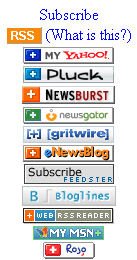
· When visiting your favorite websites -- look for news feed icons that indicate the website provides it. Often a feed icon will be displayed somewhere in the navigation bar of the site. (Here's an image that contains a sampling of several feed icons).
· Use Blogline's Search tool - Bloglines recently expanded search tool lets you search for news feeds in addition to posts, citations and the web. Use the Search for Feeds option to locate RSS feeds you might be interested in.
· Other Search tools that can help you find feeds:
- Topix.net - This search tool allows you to locate recent newsfeed items based upon keyword or phrase searching. The tool focuses specifically on news and media outlet RSS feeds for information, not weblogs.
- Syndic8.com - Syndic8 is an open directory of RSS feeds that contains thousands of RSS feeds that users have submitted.
- Technorati - Technorati is a popular blog finding tool that lets you search for blogs. Since RSS feeds are inherent to all blogging tools, Technorati Blog Search can help you find RSS feeds for topic specific blogs you may be interested in.
Additonal Resource: Technorati Tutorial on finding and adding your blog
Discovery Excercise:
1. Explore some of the search tools noted above that can help you locate some news feeds.
2. Create a blog post about your experience. Don't know what to blog about? Here some questions to think about ...
Which method of finding feeds did you find easiest to use? Which Search tool was the easiest for you? Which was more confusing? What kind of useful feeds did you find in your travels? Or what kind of unusual ones did you find? What other tools or ways did you find to locate newsfeeds?
EXTRA STUFF -- Feed icon information:
In Febuary of 2006, the adoption of a standard feed icon among websites and browsers finally began to assist in stopping the madness and confusion caused by so many variations. So far this icon has been adopted by many websites and browers, including Opera and FireFox, where it displays in the address bar:

The next release of Internet Explorer is suppose to have this as well.
#5 Make life "really simple" with RSS & a newsreader
Listen to this podcast [5:15]--> powered by ODEO
FYI & ICYW: This is the longest podcast in the program.

You’ve heard of RSS? You’ve seen those small funny tags on websites? You’ve heard co-workers and acquaintances swear by it, but still have no idea what RSS is? Well don’t worry, according to a recent survey you’re still in the majority, but this is changing rapidly. In the information world, RSS is not only revolutionalizing the way news, media and content creators share information, but it also is swiftly changing the way everyday users are consuming information.
RSS stands for “Really Simple Syndication” and is a file format for delivering regularly updated information over the web.
Just think about the websites and news information sources you visit every day. It takes time to visit those sites and scour the ad-filled and image-heavy pages for just the text you want to read, doesn’t it? Now imagine if you could visit all those information sources and web pages in just one place and all at the same time … without being bombarded with advertising… without having to search for new information on the page you’d already seen or read before… and without having to consume a lot of time visiting each site individually. Would that be valuable to you? Well, it’s available now through a newsreader and RSS.
This week’s discovery exercises focus on learning about RSS news feeds and setting up a Bloglines account (a free online newsreader) for yourself to bring your feeds together.
Discovery Resources:
Feed Me: A gentle introduction to Internet feeds - a good tutorial from Palinet, a library cooperative
Using Bloglines Tutorial (how to keep up with dozens of blogs everyday) – This online tutorial walks you through how to setup a Bloglines account and add newsfeeds. Follow Steps 1 to 3 to set up your Bloglines account. Steps 4 – 9 are optional and cover how to subscribe to different types of feeds (podcasts, Flickr albums, etc)
Adding RSS Feeds to Bloglines - A short YouTube video that Helene Blowers created showing how to add feeds.
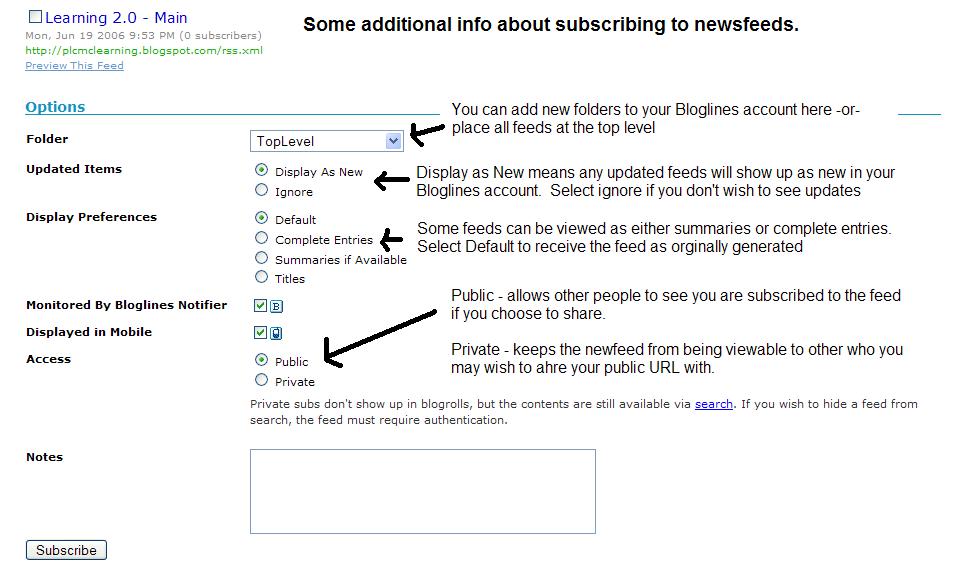
Additional Bloglines news feed subcription information (screenshot image)
Your co-workers - tap into their knowledge or work through your discovery process together.
Discovery Exercise:
1. Follow the discovery resources above to learn more about RSS and newsreaders.
2. Create a free online Bloglines account for yourself and subscribe to at least 10 newsfeeds to your reader. See Using Bloglines Tutorial steps 1-3 for instructions.
Newsfeeds:
o Subscribe to your co-workers' feeds. This is as easy as typing the blog URL into the subscribe field in Bloglines. Try it, it's easy!
o Then try adding a few other types of news feeds.
Charlotte.Com news feeds (pick at least one)
Reader’s Club new review feeds
Unshelved - Library cartoon feed
ZSR's Library Gazette
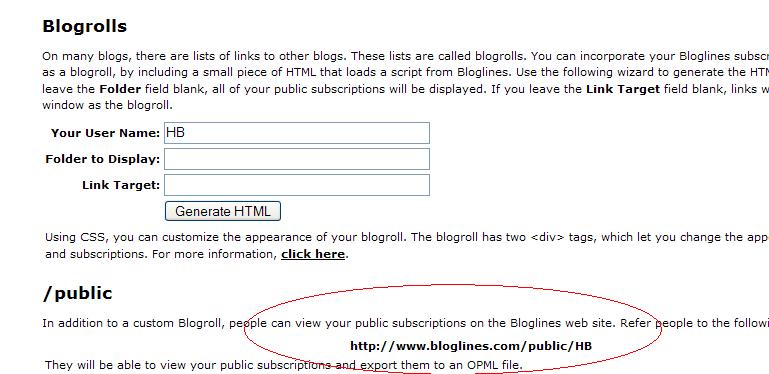
2. Scroll down the right screen pane and locate the public URL (see screenshot)
3. Be sure to add this as part of your post to demonstrate your completion of this activity.
In conclusion ...Here is link to LNMak's public Blogline's account: http://www.bloglines.com/public/LNMak
Why have a public account? To share blog rolls with others, of course. :)
PS: Once you tackle this discovery exercise, you've tackled the most difficult one.
FYI & ICYW: This is the longest podcast in the program.
You’ve heard of RSS? You’ve seen those small funny tags on websites? You’ve heard co-workers and acquaintances swear by it, but still have no idea what RSS is? Well don’t worry, according to a recent survey you’re still in the majority, but this is changing rapidly. In the information world, RSS is not only revolutionalizing the way news, media and content creators share information, but it also is swiftly changing the way everyday users are consuming information.
RSS stands for “Really Simple Syndication” and is a file format for delivering regularly updated information over the web.
Just think about the websites and news information sources you visit every day. It takes time to visit those sites and scour the ad-filled and image-heavy pages for just the text you want to read, doesn’t it? Now imagine if you could visit all those information sources and web pages in just one place and all at the same time … without being bombarded with advertising… without having to search for new information on the page you’d already seen or read before… and without having to consume a lot of time visiting each site individually. Would that be valuable to you? Well, it’s available now through a newsreader and RSS.
This week’s discovery exercises focus on learning about RSS news feeds and setting up a Bloglines account (a free online newsreader) for yourself to bring your feeds together.
Discovery Resources:
Discovery Exercise:
1. Follow the discovery resources above to learn more about RSS and newsreaders.
2. Create a free online Bloglines account for yourself and subscribe to at least 10 newsfeeds to your reader. See Using Bloglines Tutorial steps 1-3 for instructions.
Newsfeeds:
o Subscribe to your co-workers' feeds. This is as easy as typing the blog URL into the subscribe field in Bloglines. Try it, it's easy!
o Then try adding a few other types of news feeds.
3. Create a post in your blog about this exercise. Optional: If you're up to the challenge, you can provide the URL address to your public bloglines account (find where to find this below)
Don’t know what to blog about? Think about these questions:
-What do you like about RSS and newsreaders?
-How do you think you might be able to use this technology in your work or personal life?
-How can libraries use RSS or take advantage of this new technology?
How to find your public Bloglines URL:
1. Click on the Share tab within your Bloglines account:
2. Scroll down the right screen pane and locate the public URL (see screenshot)
3. Be sure to add this as part of your post to demonstrate your completion of this activity.
In conclusion ...Here is link to LNMak's public Blogline's account: http://www.bloglines.com/public/LNMak
Why have a public account? To share blog rolls with others, of course. :)
PS: Once you tackle this discovery exercise, you've tackled the most difficult one.
#4 Blog about Technology
Hello Learning 2.0 participants.
For this thing, simply blog about anything technology related. Yes, it can be anything that relates to technology! You just need to share a few thoughts.
PS: Also be sure add at least one comment to another participant's blog. That's what online communities are all about - connecting and communication. :)
For this thing, simply blog about anything technology related. Yes, it can be anything that relates to technology! You just need to share a few thoughts.
PS: Also be sure add at least one comment to another participant's blog. That's what online communities are all about - connecting and communication. :)
#3 More Flickr Fun


Like many web 2.0 sites, Flickr has encouraged other people to build their own online applications using images found on the site. Through the use of APIs (application programming interfaces), many people have created third party tools and mashups* that use Flickr images. Here are just a sampling of a few …
· Mappr - allows you to take Flickr images and paste them on a map
· Flickr Color Pickr - lets you find public photos in Flickr that match a specific color.
· Montagr – create a photo mosaic from photos found on Flickr.
Discover more mashups, web apps, and Flickr tools.
Discovery Exercise:Your discovery exercise for this “thing” is to:
1. Explore some of the fun Flickr mashups and 3rd party tools that are out there.
2. Create a blog post about one that intrigues you.
Sites include FD Toys’ Trading Card Maker.
And there’s a ton of librarians out there that have created their own Librarian Trading Card.
So have some fun discovering and exploring some neat little apps. And if you're up to the challenge while you’re at it, why not create a trading card of your own. :)
* Mashup Note: Wikipedia offers some great articles that explain mashups. Basically they are hybrid web applications that take features from one application (like Flickr) and mash it up with another (like a map). In this example, you get Mappr (http://mappr.com/).
PS: WFU PCL image created by Spell with Flickr.
#2 Discover Flickr
Listen to this podcast [2:38] powered by ODEO



WPC picture.jpg Originally uploaded by LNMak
Photo sharing websites have been around since the 90s, but it took a small startup site called Flickr to catapult the idea of “sharing” into a full blown online community. Within the past year, Flickr has become the fastest growing photo sharing site on the web and is known as one of the first websites to use keyword “tags” to create associations and connections between photos and users of the site. For this discovery exercise, you are asked to take a good look at Flickr and discover what this site has to offer. Find out how tags work, what groups are, and all the neat things that people and other libraries are using Flickr for.Discovery Resources:
· Flickr Learn More tour (6 steps)
· Mediamazine Flickr Tutorials
· Flickr: Popular tags
· Interesting- Last 7 days
· Flickr Services
Discovery Exercise:In this discovery exercise, you have two options…
a. Take a good look around Flickr and discover an interesting image that you want to blog about. Be sure to include either a link to the image or, if you create a Flickr account, you can use Flickr's blogging tool to add the image in your post.
-- OR --
b. If you're up to an easy challenge ... create a Free account in Flickr and use a digital camera to capture a few pictures of something. Upload these to your Flickr account and tag at least one of the images “WFUPCL” and mark it public. Then create a post in your blog about your photo and experience. Be sure to include the image in your post. Once you have a Flickr account, you may use Flickr's blogging tool to add the image in your post.
So go ahead, explore the site and have some Flickr photo fun and if you're interested in looking at some photo hosting sites, then why not check out Jamie's recommendations & this Wired story. (Thanks Jamie for the link).
PS: A quick word about photo posting etiquette - When posting identifiable photos of other people (especially minors) is it advisable to get the person's permission before posting their photo in a publicly accessible place like Flickr. Never upload pictures that weren't taken by you (unless you have the photographer's consent) and always give credit when you include photos taken by someone else in your blog.
PPS: The photo was uploaded by LNMak. She used the handy dandy "blog this" tool inside Flickr to add it to this post.
Wednesday, June 4, 2008
#1 Grab yourself a blog in 3 steps
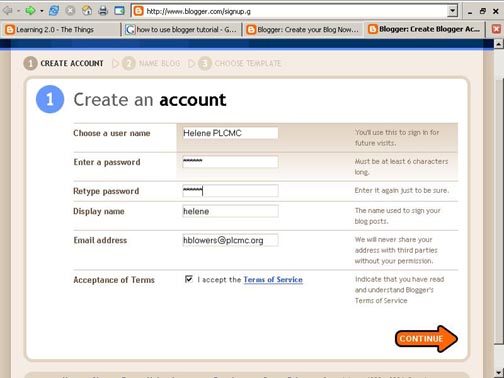
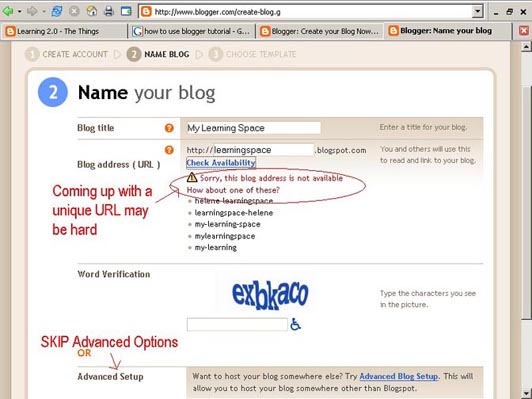
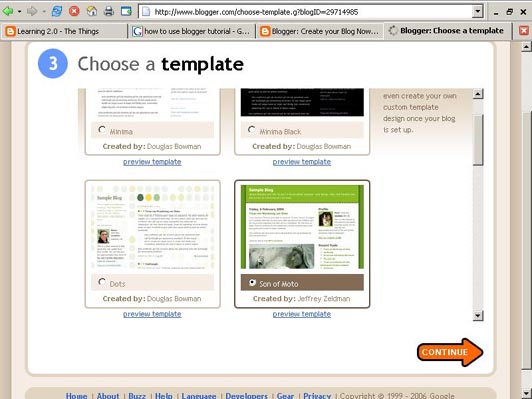
It’s time to setup your very own personal blog to begin recording your thoughts, discoveries and exercises in. For this program, it is recommended that you use Blogger*, a popular free online blog hosting service that is extremely easy to use.Creating a blog using Blogger takes just three steps:
1. Create an account (view screenshot)
2. Name your blog (view screenshot)
3. Select your template. (view screenshot)
Once you’ve created your blog here are two important things to know:
1. Create an account (view screenshot)
2. Name your blog (view screenshot)
3. Select your template. (view screenshot)
Once you’ve created your blog here are two important things to know:
- To add posts: The maintenance interface that you will use to add posts, edit or change the step-up your blog is accessed online at http://www.blogger.com/ Be sure to write down your login and password.
- To view your blog: Your blog address is http://(xxxx).blogspot.com, (xxxx)=the unique identifier you entered in Step 2. Be sure to also write down your blog address.
If you run into problems or would like more information about blogs and using Blogger here are some discovery resources you can use:
- Freevlog’s Quicktime Tutorial: Setup a Free Blogger Blog Note: Ignore the opening comments about downloading Firefox if your PC doesn’t have it. This will work in Explorer just fine.
OK -- Now, it’s your turn...
Discovery Exercise:
1. Setup a blog for yourself through Blogger.
2. Add a test post or two.
3. Have fun!!!!
4. Send your blog URL to Alan Keely to be posted on the WFUPCL Blog.
IMPORTANT NOTE: How you choose to identify yourself on your blog is your choice. You can blog under a screen name, anonymously, or as yourself.
Subscribe to:
Posts (Atom)